
NigmaTV IPTV Not Working? Fixes for Buffering & Errors
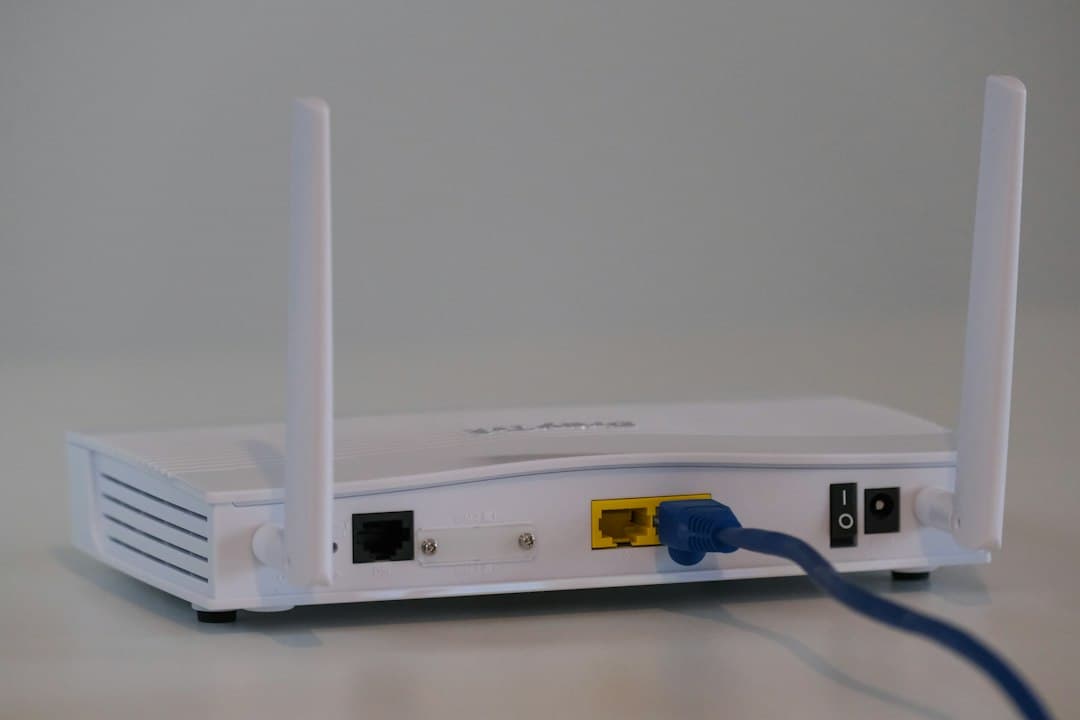
When your IPTV is not working, the cause is usually closer to home than it seems: a typo in the login details, a player app that needs a restart, or a Wi-Fi signal that's weaker than you think. This guide goes through the fixes in the order that solves the most problems fastest, from login errors to channels that won't load to IPTV buffering and app crashes. It's written for NigmaTV subscribers, but most of the checks apply to any IPTV setup. If none of them work, the last section explains how to reach our support on WhatsApp and what to send so they can help quickly.
Start here: the 5-minute checklist
Before digging into a specific error, run these five checks. Together they fix a large share of problems.
- Restart the player app. Close it completely, not just back to the home screen, then open it again.
- Restart the device and the router. Unplug both for 30 seconds, plug the router in first, wait until it's back online, then start the TV or streaming stick.
- Check that other apps work. If nothing streams on the device, the problem is the internet connection, not the IPTV service.
- Check the date of your plan. NigmaTV plans are prepaid for 1, 3, 6 or 12 months. If yours has ended, the login stops working.
- Check how many screens are in use. A 1-device plan streams on one screen at a time. A second screen on the same plan can stop the first one.
If the problem is still there, find your symptom below.
NigmaTV login errors and "invalid credentials"
Your NigmaTV login details are sent once payment is confirmed, either as an Xtream Codes login (server URL, username and password) or as an M3U playlist link. Most login errors come from how they were typed.
- Retype, don't trust autofill. Check upper and lower case, and look for a space at the start or end of each field.
- Copy the server URL exactly, including the
http://orhttps://part and any port number shown in your activation message. - Use the right login type. If you have Xtream Codes details, choose "Xtream Codes" or "Xtream Codes API" in the app, not "M3U URL", and the other way round.
- Delete and re-add the profile. Old or duplicated profiles in the player can keep an outdated server address.
Can't find your NigmaTV activation message? Message our team on WhatsApp.
How to fix IPTV channels that won't load
If you can sign in but the channel list stays empty, or a channel shows a black screen:
- Refresh the playlist. Most players have a "reload" or "update playlist" option in their settings. Use it after any change to your NigmaTV plan.
- Try a different channel. If only one channel fails, it may be temporary at the source. Channel line-ups can change, so one missing channel doesn't mean the whole service is down.
- Clear the app's cache. On Android TV and Fire TV, go to the device's app settings, choose the player and clear its cache (not its data, unless you're ready to re-enter your login).
- Update or reinstall the player. An outdated app can stop loading playlists properly. Reinstall it from an official store or from the link in your NigmaTV activation message. Our IPTV setup guide lists the recommended app for each device.
- Try a second app. If channels load in another recommended player, the issue is the first app, not your NigmaTV subscription. Our IPTV Smarters Pro guide covers one of the most common players.
How to stop IPTV buffering
IPTV buffering means the stream is arriving more slowly than the picture is playing. The fix is almost always about the connection between your router and the screen.
Check your speed where you watch
We recommend at least 10 Mbps for HD, 25 Mbps for 4K and 50 Mbps or more for 8K, for each screen watching at the same time. Run a speed test on the streaming device itself, or at least in the same room. Wi-Fi speed next to the router can be very different from speed behind two walls.
Improve the connection
- Use an Ethernet cable if the device has a port.
- Move the router closer to the TV, or raise it off the floor and away from metal objects.
- Use the 5 GHz Wi-Fi band if your router and device support it.
- Pause large downloads, game updates and other streams in the house while you watch.
Lower the picture quality
If the channel is available in more than one quality, switch from 4K to HD. A smaller stream needs less bandwidth and buffers less on a borderline connection. For more on resolution and speed, read our 4K IPTV guide.
Why IPTV keeps crashing on your device
If the player closes on its own, or freezes and has to be restarted:
- Free up storage. Streaming sticks with very little free space slow down and crash. Uninstall apps you don't use.
- Restart the device regularly. Many streaming sticks run for weeks without a full restart. A restart clears memory.
- Update the device software in its system settings.
- Avoid running two players at once on the same device.
On a Fire TV stick, these steps matter even more because storage and memory are limited. Our Firestick guide explains the full setup.
When to contact NigmaTV support
If you've worked through the checks above and your IPTV is still not working, message the NigmaTV team on WhatsApp, 24/7, through the contact page. To get help faster, send:
- the device and the player app you use
- what you see: a photo of the error message on screen helps a lot
- when it started, and whether it affects every channel or only some
- what you've already tried from this guide
If the service was completely unavailable for an extended period because of a fault on our side that we could not fix, that is one of the exceptions in our refund policy. Requests must be made within 48 hours of the issue, and we answer within 2 business days.
FAQ: NigmaTV and IPTV not working
How do I fix IPTV not loading?
Restart the app, the device and the router, then check your login details for typos and spaces. Refresh the playlist in the player's settings. If it still doesn't load, try a second recommended player, then contact support.
Why does my IPTV keep crashing?
Usually because the device is low on storage or memory, or the player app is out of date. Free up space, restart the device, update the app and the system software, and avoid running two players at the same time.
Is IPTV down right now?
There's no public status page for NigmaTV. The quickest way to find out whether the issue is on our side or yours is to message our support on WhatsApp. Meanwhile, check whether other apps stream on the same device.
What to do if IPTV is not working?
Run the 5-minute checklist at the top of this page: restart the app, restart the device and router, test another app, check your plan dates and the number of screens in use. Then follow the section that matches your symptom.
Why is my IPTV buffering?
The connection to your screen is too slow or unstable for the stream. Use a cable or stronger Wi-Fi, pause other downloads and, if possible, switch to a lower quality.
Conclusion: getting NigmaTV IPTV working again
Most cases of IPTV not working come down to the login details, the player app or the home network, and the checks in this guide fix them in minutes. When they don't, NigmaTV support is on WhatsApp 24/7. Not a subscriber yet and want to see how the service runs on your connection? Request the 24-hour free trial, or compare plans on the IPTV subscription page.
Want to try NigmaTV?
Request the 24-hour free trial on WhatsApp, no credit card needed, or start with the 1-month plan at $13.99.
More NigmaTV articles

NigmaTV 4K IPTV: Picture Quality, Speeds and Devices
NigmaTV 4K IPTV explained: what a 4K or 8K picture needs, the internet speed to plan for, which devices can show it and how to test it on your TV.
October 21, 2026
NigmaTV – Best IPTV USA: What to Check Before You Buy
Looking for the best IPTV in the USA? Here is what to check in an IPTV provider, and how NigmaTV's plans, trial, devices and support measure up.
October 21, 2026
NigmaTV and Cable TV Alternatives: IPTV vs Cable
Comparing cable TV alternatives? See how NigmaTV IPTV differs from cable on cost, contracts, devices and setup, and how to switch step by step.
October 21, 2026