NigmaTV on Firestick: IPTV Firestick Setup Guide
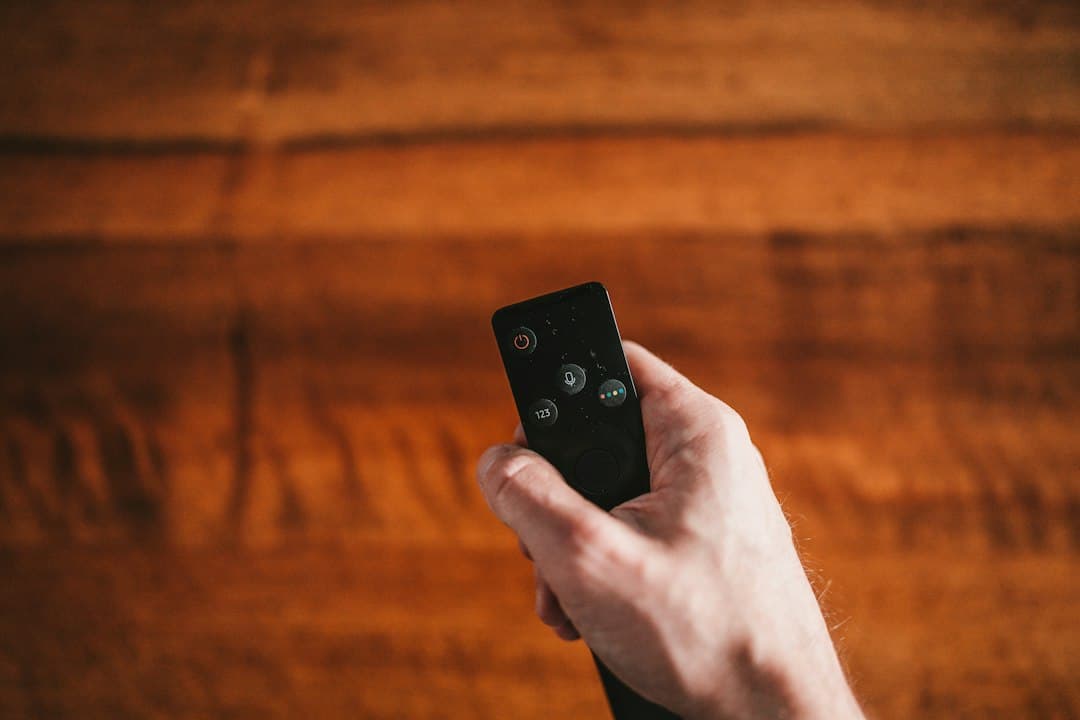
An Amazon Firestick is one of the easiest ways to turn any TV with an HDMI port into an IPTV screen. This IPTV Firestick guide shows how to set up NigmaTV on a Fire TV Stick or Fire TV device, step by step: allowing apps from outside the Amazon Appstore, installing Downloader, adding the IPTV player and signing in. It also covers the remote, a few tips for a steadier picture, and what to do if something doesn't load.
What you need to watch NigmaTV on Firestick
- A Fire TV Stick or Fire TV device, connected to your TV and to the internet, and signed in to your Amazon account.
- Your NigmaTV login details. Once payment is confirmed, you receive your login details and setup guide: an Xtream Codes login (server URL, username and password) or an M3U playlist. The activation message also contains the link to the IPTV player for Fire TV. No subscription yet? The 24-hour free trial gives full access with no credit card required.
- A stable connection. We recommend at least 10 Mbps for HD, 25 Mbps for 4K and 50 Mbps or more for 8K.
Keep the activation message open on your phone while you work through the steps. It saves a lot of typing mistakes.
How to install IPTV on Firestick with NigmaTV
Step 1: allow apps from unknown sources
The IPTV player isn't installed from the Amazon Appstore, so the Firestick has to allow it first.
- From the home screen, open Settings, then My Fire TV, then Developer Options.
- Turn on Apps from Unknown Sources. On some Fire OS versions this option is called Install unknown apps and lists your apps one by one; in that case, turn it on for Downloader after Step 2.
On some newer models, Developer Options is hidden. Open Settings → My Fire TV → About, then press the select button on your device name several times until a message says you are now a developer. Go back and Developer Options appears.
Step 2: install Downloader (AFTVnews)
- On the home screen, use Find or the search icon and type Downloader.
- Select the orange Downloader app by AFTVnews and install it from the Amazon Appstore.
- Open it and allow the permissions it asks for.
Downloader only downloads files. It contains no channels and no player of its own.
Step 3: download the IPTV player
- In Downloader, select the URL box on the home tab.
- Type the IPTV player URL from your NigmaTV activation message, exactly as written, and select Go.
- When the download finishes, select Install, then Open or Done.
- Downloader may offer to delete the installation file. You can: the player is already installed.
Install only the player linked in your activation message. Don't install IPTV apps from random links or video comments.
Step 4: sign in to your NigmaTV subscription
- Open the player.
- Choose Xtream Codes (or "Login with Xtream Codes API") or M3U playlist.
- Enter the server URL, username and password exactly as they appear in your activation message, with no extra spaces. Watch for upper and lower case.
- Save. The live channels, movies, series and TV guide (EPG) load.
That's the whole NigmaTV IPTV for Firestick setup. The setup guide has the same steps for every other device, and our IPTV Smarters Pro guide covers that player in detail.
How to use the Firestick remote for IPTV
You don't need a keyboard or a mouse. The standard Fire TV remote covers everything:
| Button | What it does in most IPTV players |
|---|---|
| Navigation ring (up, down, left, right) | Moves between categories, channels and menu items |
| Select (center button) | Opens a category, starts a channel, confirms a choice |
| Back | Returns to the previous list or closes the player screen |
| Home | Leaves the app and returns to the Fire TV home screen |
| Menu (three lines) | Opens extra options in many players, such as favorites or settings |
| Play/Pause | Pauses on-demand titles and, where available, catch-up TV |
Labels and layouts differ between players, so spend a minute exploring the menus. Adding your favorite channels to a favorites list makes evening viewing much faster.
Best IPTV for Firestick: what actually matters
When people search for the best IPTV for Firestick, they are usually asking two things at once: which service, and which player app. For the service, judge it on your own Fire TV during a trial, at the time of day you normally watch. NigmaTV gives you 61,000+ live channels and 160,000+ movies and series, a TV guide and catch-up TV, in every plan. Plans are prepaid with no contract, starting at $13.99 for 1 month for 1 device, or $69.99 for 12 months, which works out to about $5.83 a month.
For the player, the one linked in your NigmaTV activation message is the recommended choice on Fire TV. Most other players that accept an M3U playlist or Xtream Codes login work too.
Tips for a smoother picture on Fire TV
- Use a wired connection if you can. An Ethernet adapter for Fire TV, plugged into your router, is often steadier than Wi-Fi.
- Keep the router close. If Wi-Fi is your only option, avoid placing the stick behind the TV against a wall; a short HDMI extender can help.
- Restart now and then. Unplug the Firestick for 30 seconds, or use Settings → My Fire TV → Restart.
- Clear the player's cache. Go to Settings → Applications → Manage Installed Applications, select the player, then Clear cache.
- Check 4K support. If you want 4K, you need a 4K-capable Fire TV device and TV. Our 4K IPTV guide explains the rest.
Still stuck after that? See our IPTV not working guide or message NigmaTV support on WhatsApp, 24/7, through the contact page.
FAQ: IPTV on Firestick
How to download IPTV on Firestick?
Turn on apps from unknown sources in Developer Options, install Downloader (AFTVnews) from the Amazon Appstore, then type the player URL from your NigmaTV activation message into Downloader and install the player.
How to install IPTV on Firestick?
After downloading the player, open it, choose Xtream Codes or M3U playlist, and enter the server URL, username and password from your activation message. Save, and your channels load.
What's the best IPTV player for Firestick?
The player linked in your activation message is the one we recommend on Fire TV, because the steps in this guide are built around it. Other players that accept M3U or Xtream Codes usually work too; IPTV apps are only players and contain no channels of their own.
How to use the Firestick remote for IPTV?
Use the navigation ring to move through categories and channels, Select to open one, Back to return to the list and Home to leave the app. In many players the Menu button opens favorites and settings.
Can I use one subscription on more than one Firestick?
Yes, if your plan covers enough devices. Plans cover 1 to 4 devices at the same time; for example, 2 devices cost $30.99 for 1 month or $120 for 12 months.
Conclusion: NigmaTV makes IPTV Firestick setup simple
Setting up NigmaTV on a Firestick takes four steps: allow unknown apps, install Downloader, add the player from your activation message and sign in. Once it is done, the IPTV Firestick experience is one remote and one app. Test it on your own TV with the 24-hour free trial, then choose your plan on the subscription page.
Want to try NigmaTV?
Request the 24-hour free trial on WhatsApp, no credit card needed, or start with the 1-month plan at $13.99.
More NigmaTV articles

NigmaTV with IPTV Smarters Pro: Full Setup Guide
Use IPTV Smarters Pro with NigmaTV: what the app is, where to get it on each device, how to sign in with Xtream Codes or M3U, and which player to choose.
October 21, 2026
NigmaTV 4K IPTV: Picture Quality, Speeds and Devices
NigmaTV 4K IPTV explained: what a 4K or 8K picture needs, the internet speed to plan for, which devices can show it and how to test it on your TV.
October 21, 2026
NigmaTV – Best IPTV USA: What to Check Before You Buy
Looking for the best IPTV in the USA? Here is what to check in an IPTV provider, and how NigmaTV's plans, trial, devices and support measure up.
October 21, 2026